Managing Job Cards
Once a job card is created and workers are assigned, you can manage all aspects of the job card while work is in progress. This guide covers day-to-day management of active job cards.
Accessing All Orders
To view and manage all your job cards, you need to access the Orders page.
How to Access Orders
- Go to Sales in the main menu
- Click on Orders
- You'll see a list of all your orders with job cards

The Orders page displays all your job cards in one place
Finding Specific Job Cards
Use the filter options to quickly find the job card you need.
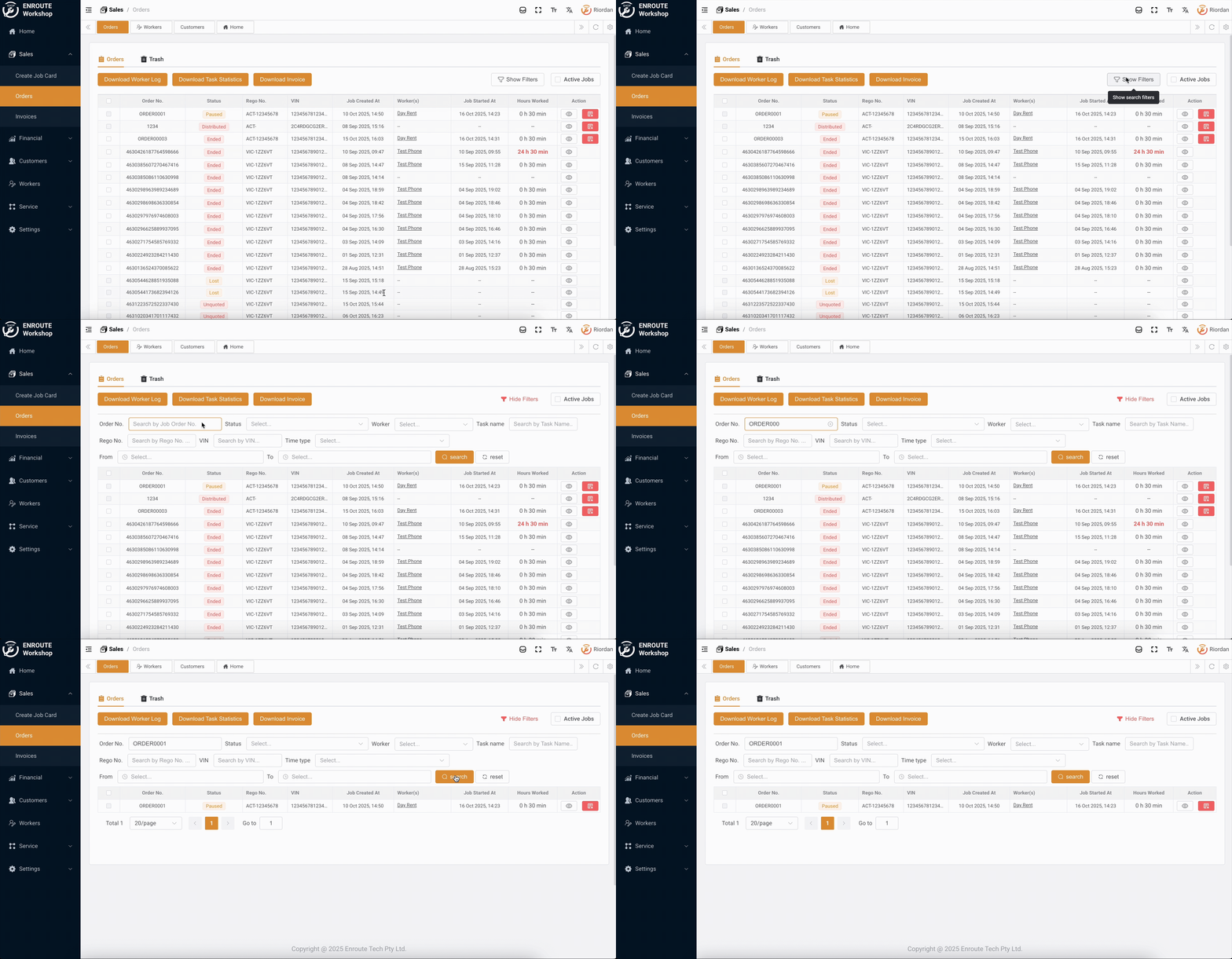
Filter by order number, status, worker, and more
Using the Active Jobs Toggle
Focus on current work with the Active Jobs filter:
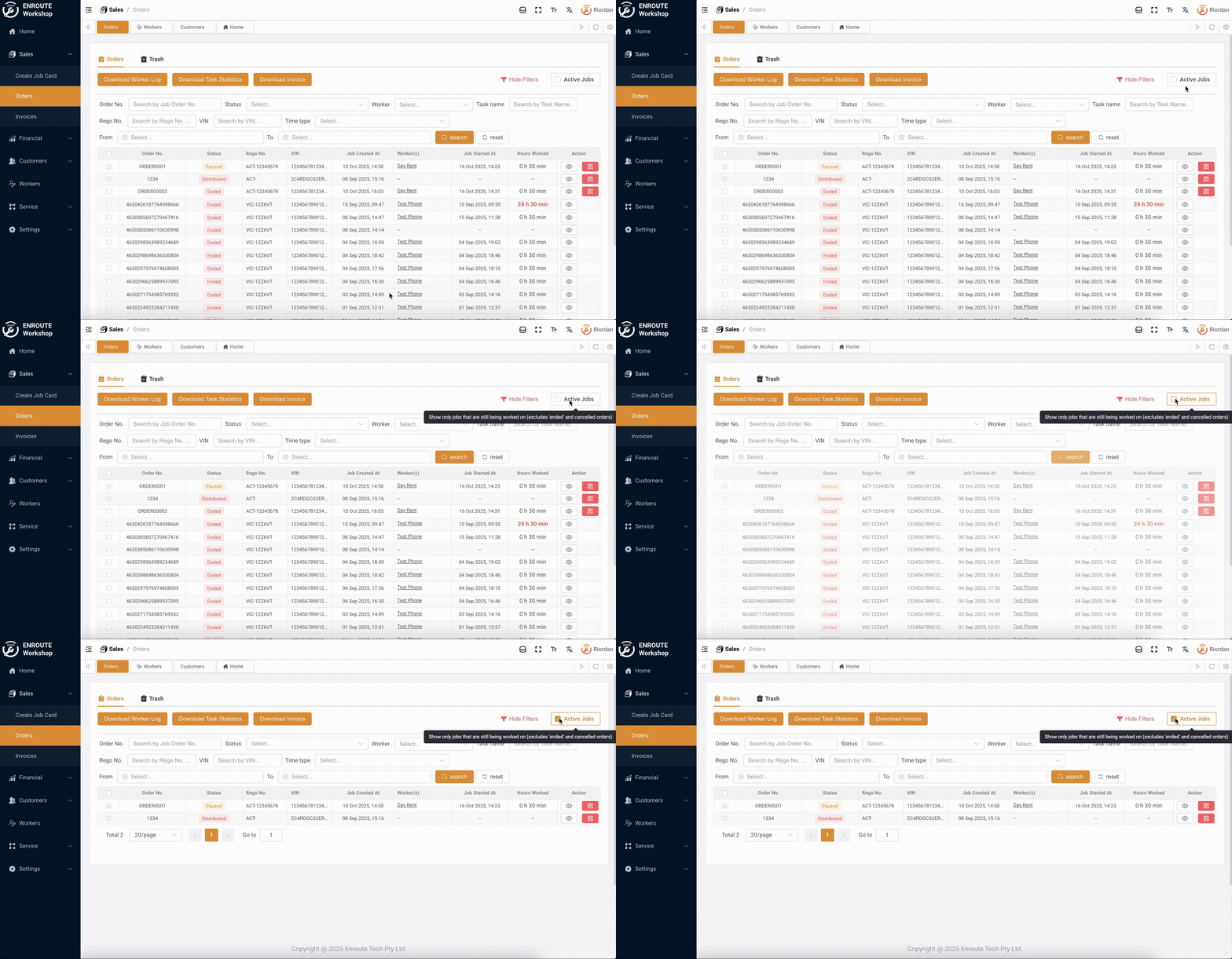
Toggle to show only active job cards
When enabled:
- Shows only jobs currently being worked on
- Hides completed and closed job cards
Tip: Use "Active Jobs" during your workday to focus on current tasks, then turn it off when you need to review completed work or find historical jobs.
Quick Search Tips
Finding a job card fast:
- Use the most specific filter you know (Order No. or VIN)
- Combine multiple filters for precise results
- Toggle "Active Jobs" to narrow down options
- Click "Search" to apply filters
- Click "Reset" to clear all filters
Opening a Job Card to Manage
Once you've found the job card you need:
- Click on the view icon of that job card
- This is where you can manage all aspects of the job card
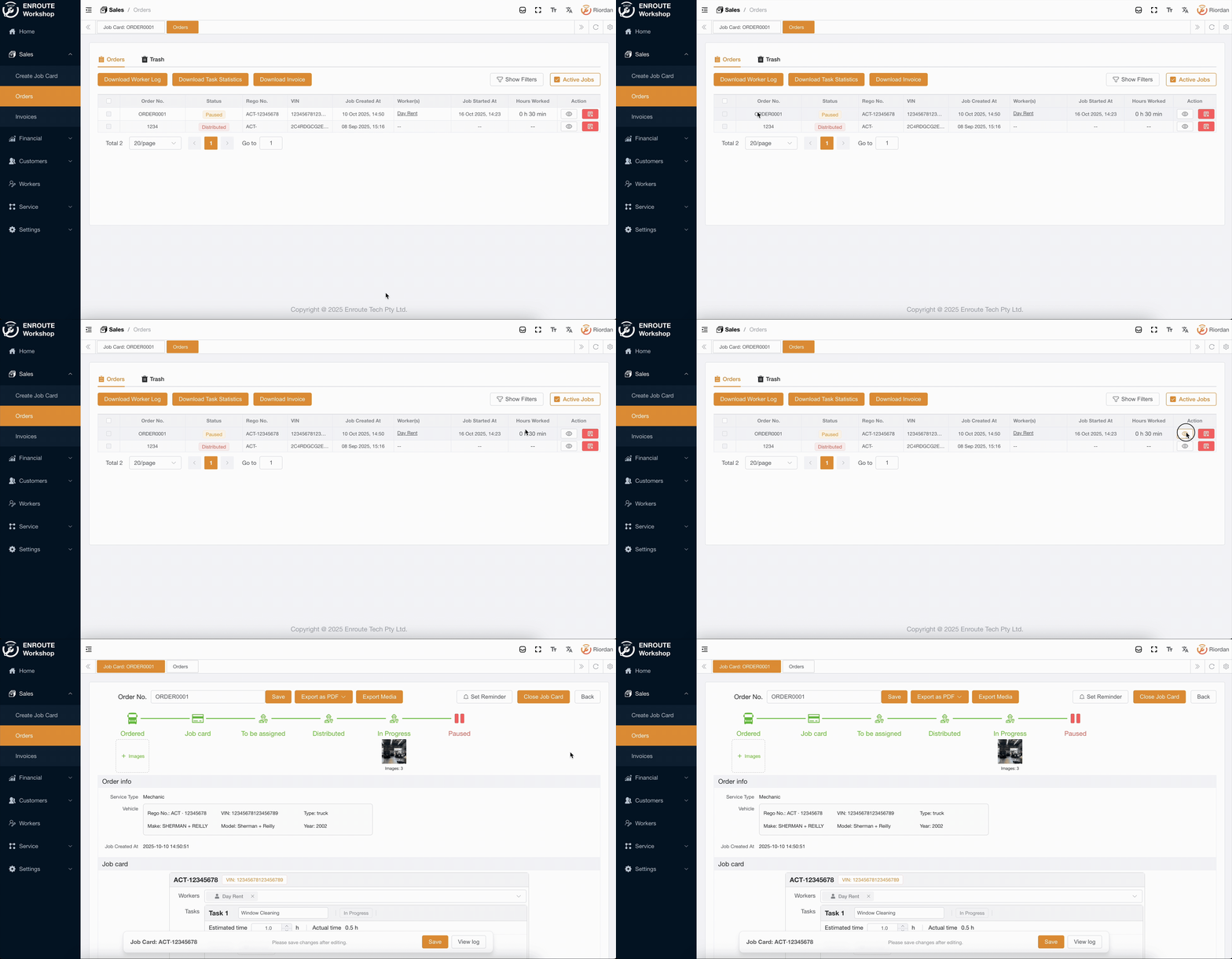
Click on any order to open and manage it
Note: Multiple managers in your organisation can edit the same job card simultaneously.
Job Card Status Flow
Understanding job card statuses helps you track progress:

The complete lifecycle of a job card
Status progression:
- Ordered - Initial order created
- Job card - Job card created for the order
- To be assigned - Waiting for workers to be assigned
- Distributed - Assigned to workers
- In Progress - Workers are actively working on tasks
- Paused - Worker has paused work on a task
- To be Ended - All work is completed
- Ended - Manager ended the Job, invoice generated (e.g., after payment)
Want to learn about ending and closing job cards? See Completing Job Cards →
Adding and Managing Tasks
Tasks are the individual work items that need to be completed on a job card.
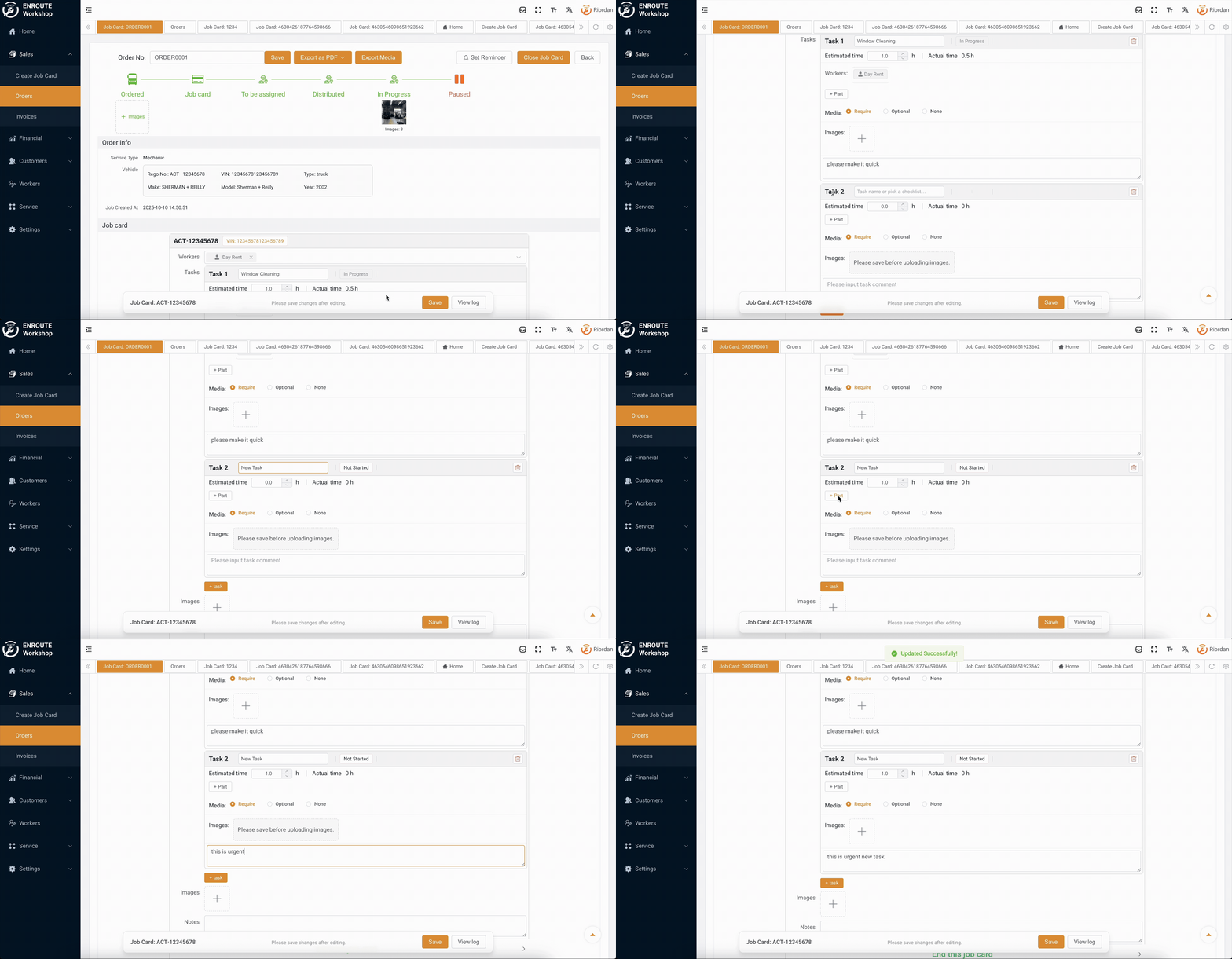
Add tasks to break down the work
How to Add a New Task
- Open the job card from the Order Detail Page
- Click "Add Task" or "New Task"
- Enter task details:
- Task name/description
- Estimated time to complete
- Parts needed
- Media requirements (see below)
- Click "Save" or "Add Task"
Note: Tasks cannot be deleted once created, so double-check before adding.
Setting Media Requirements
For each task, you can specify if workers need to take photos:

Choose the right media requirement for each task
- Required - Workers MUST take photos before completing the task
- Optional - Photos are encouraged but not mandatory
- None - No photos needed for this task
Editing Task Details
You can update task information even after workers start working.
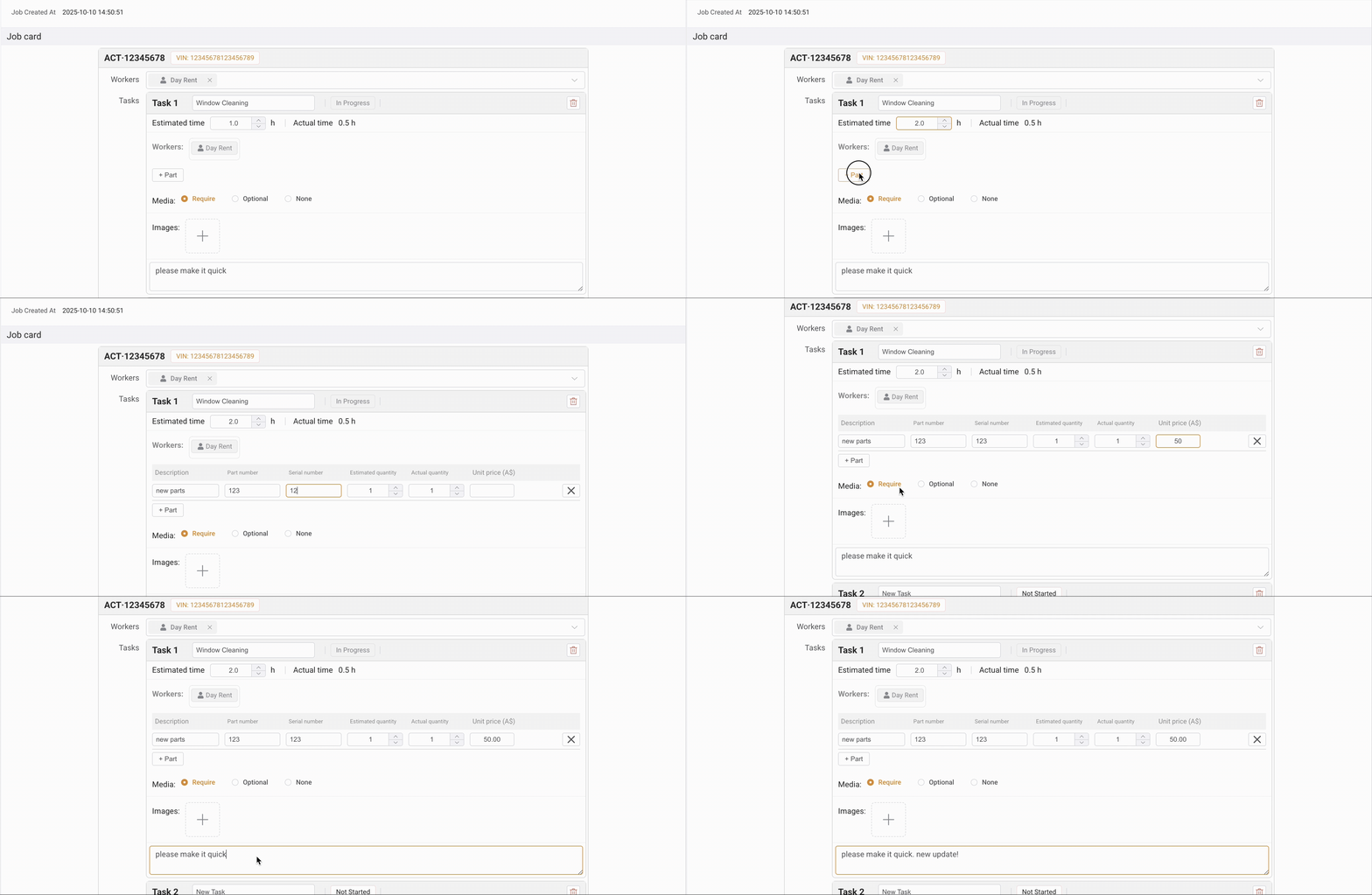
Update task information anytime
What You Can Edit:
Estimated Time
- Update how long you expect the task to take
- Actual time is tracked automatically when workers work on it
Parts Required
- Add or modify parts needed for the task
- Changes are reflected instantly in the Worker App
Media Requirements
- Change between Required, Optional, or None
- Workers will see updated requirements immediately
Task Notes
- Add important information or instructions
- Workers can read notes in their app
All changes sync instantly to the Worker App so your team always has current information.
Adding Images and Notes
You can add visual references and important information to help workers.
Adding Images to Job Cards

Add task-specific reference photos
Job card level images:
- Upload photos of the vehicle or work area
- Add reference images for workers
- Document initial condition
- Visible to all workers assigned to the job card
Adding Images to Tasks
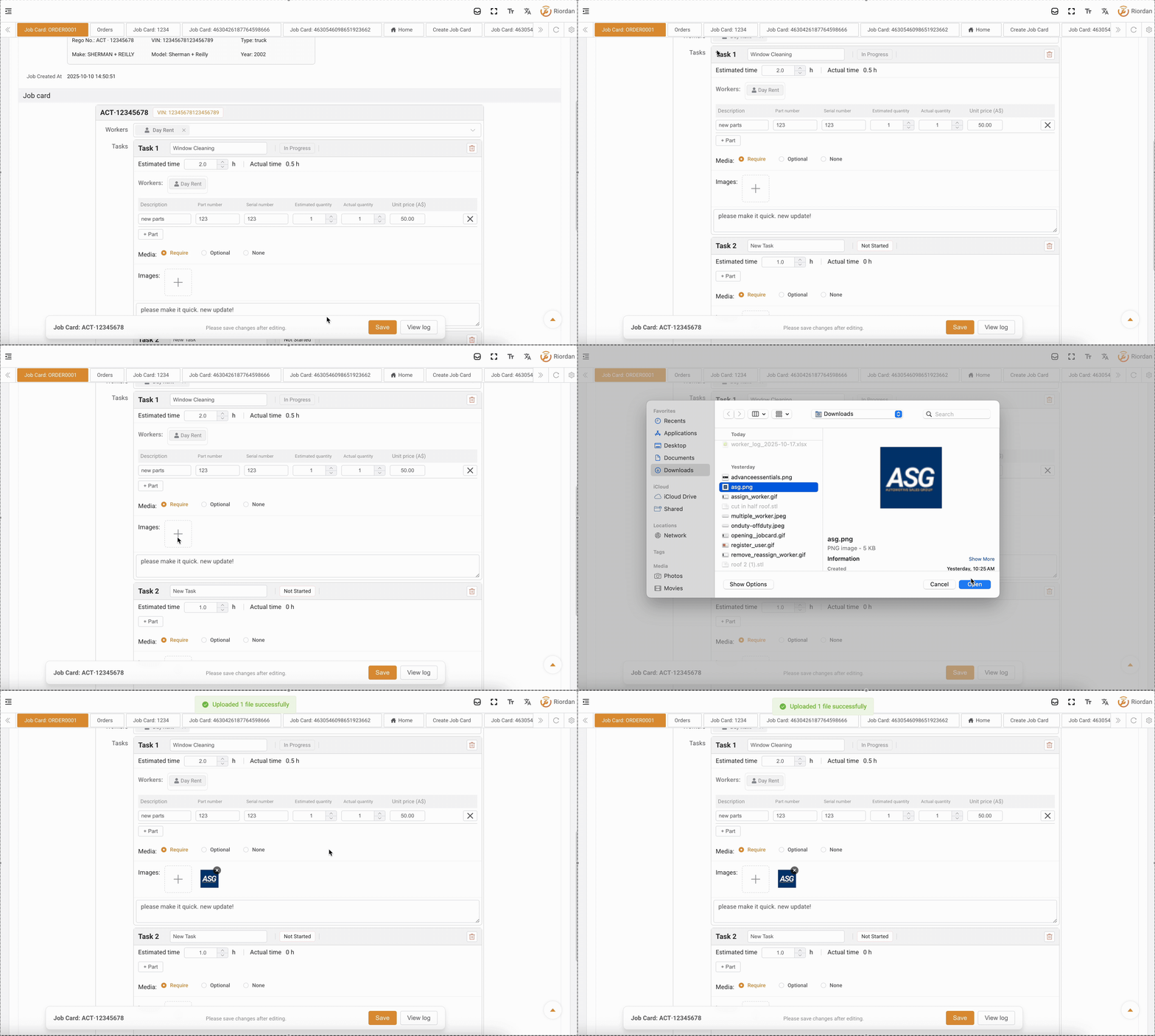
Upload reference photos for the entire job
Task level images:
- Upload after creating the task
- Show specific details workers need to see
- Reference diagrams or part photos
- Each task can have its own images
Adding Notes
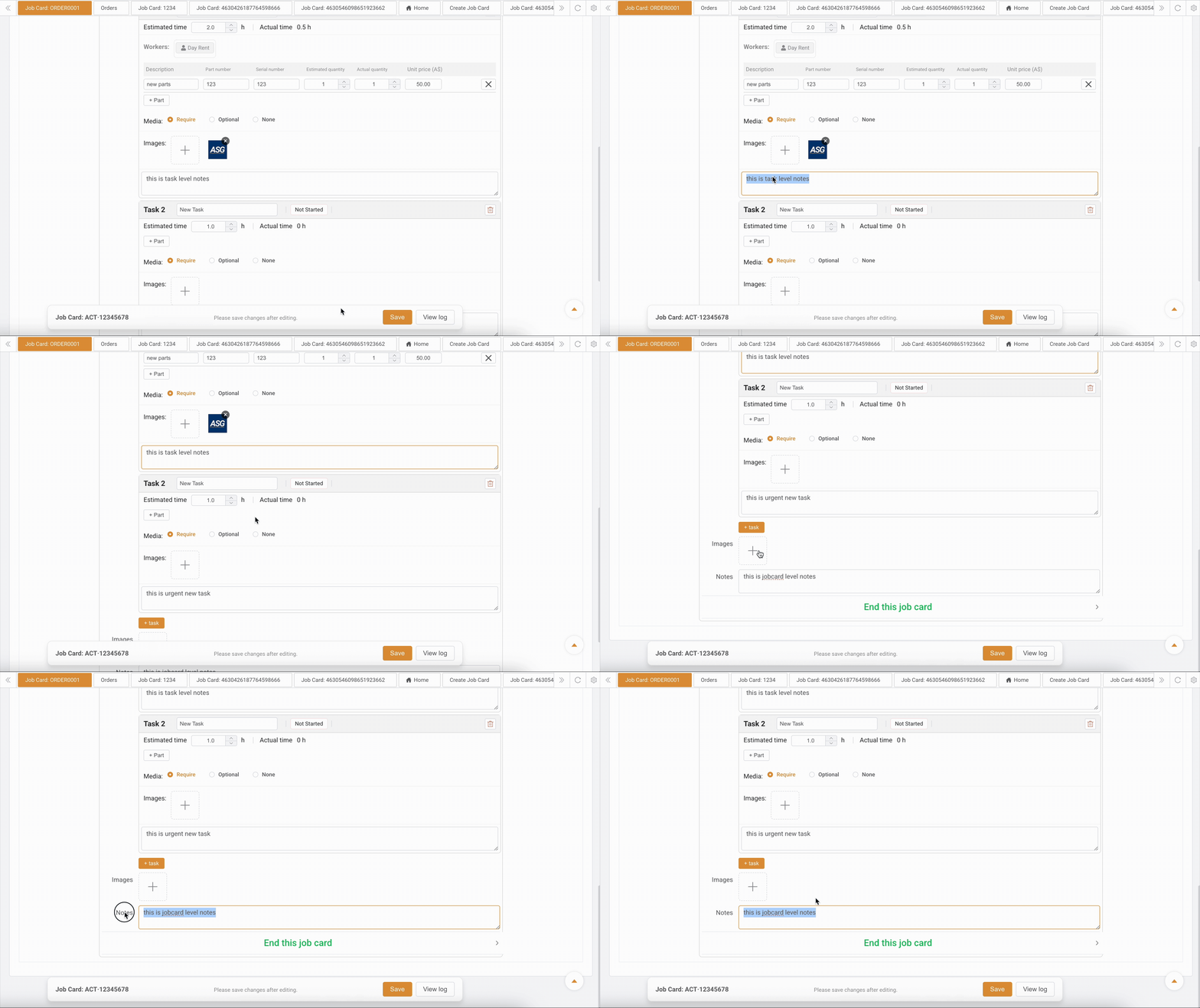
Provide clear instructions and information
Where to add notes:
- Job Card Notes - General information about the entire job
- Task Notes - Specific instructions for individual tasks
Notes are instantly visible in the Worker App, so workers always have the latest information.
Understanding Time Tracking
Enroute automatically tracks time for accurate job costing.
Two types of time:
Estimated Time
- Set by you when creating/editing tasks
- Your best guess for planning purposes
- Helps with scheduling and workload management
Actual Time
- Automatically calculated while workers work
- Starts when worker begins the task
- Stops when worker completes or pauses
- Used for accurate billing and performance tracking
Managing Paused Job Cards
Sometimes work needs to be paused temporarily.
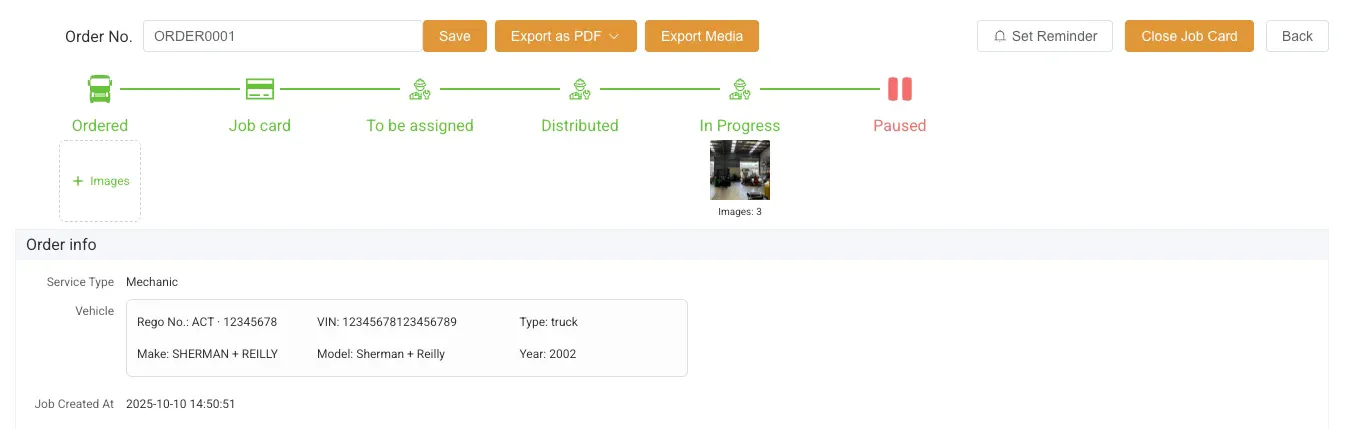
Paused status shows when work is temporarily stopped
How job cards get paused:
- Workers pause their tasks in the Worker App
- Status automatically changes to "Paused"
- You can see which tasks are paused
What to do with paused job cards:
- Check why work was paused
- Set a reminder to follow up
- Communicate with workers about next steps
- Resume work when ready
Tip: Use reminders for paused job cards so nothing gets forgotten.
Setting Reminders
Keep track of follow-ups with job card reminders.

Never forget to follow up on important jobs
How to Set a Reminder
- Open the job card
- Look for "Set Reminder"
- Choose date and time for the reminder
- Add a note about what to follow up on
- Add the reminder
When to use reminders:
- Job card is paused and needs follow-up
- Waiting for parts to arrive
- Customer needs to be contacted
- Vehicle needs to be picked up
You'll receive a notification on your Enroute app when the reminder time arrives.
Downloading Task-Specific Worker Log
For any task in a job card, you can download a log showing worker time tracking.
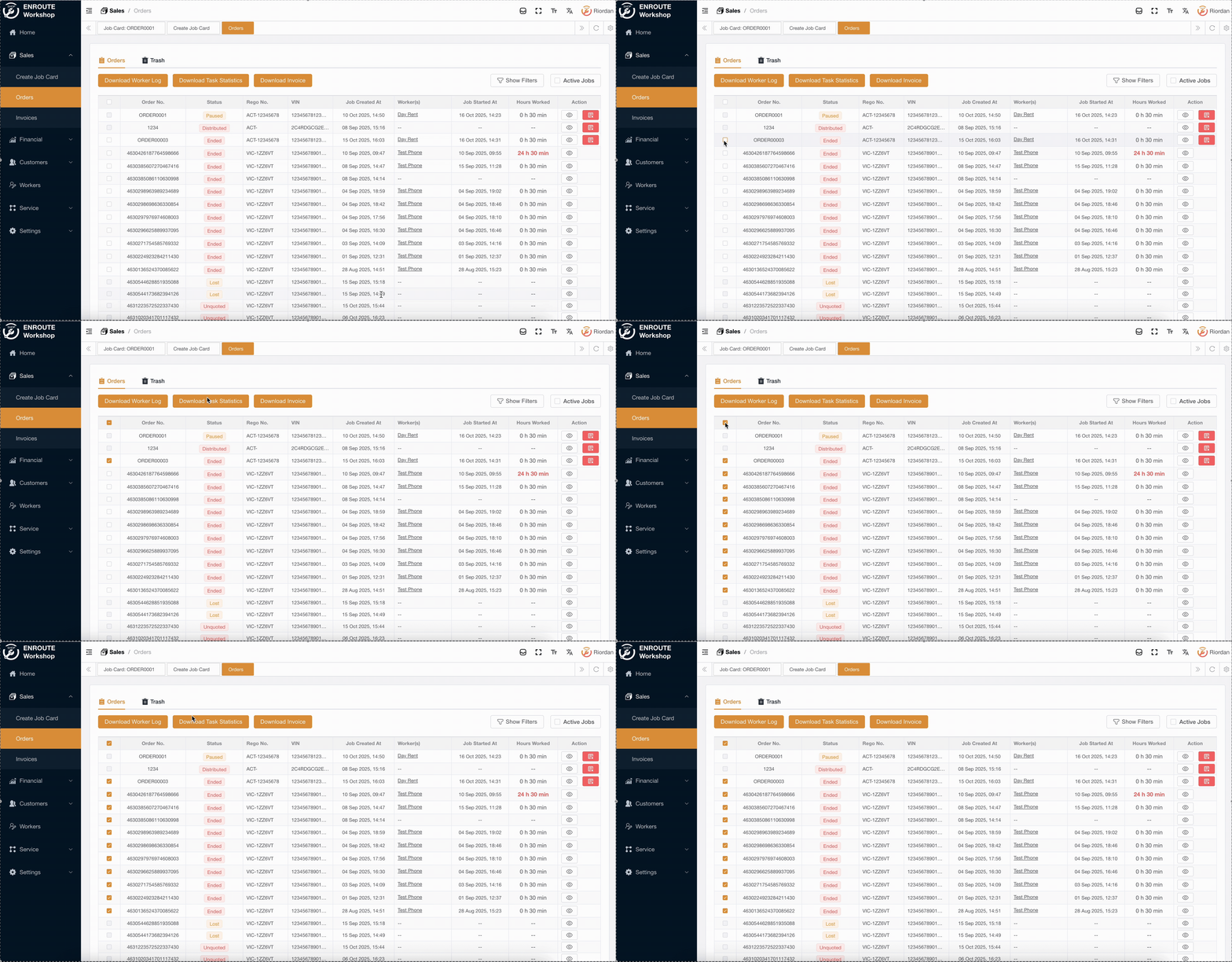
Track time spent by workers on individual tasks
How to download:
- Open the job card
- Find the task you want to check
- Click "Download Worker Log" for that task
- The log will download showing:
- Workers assigned to that task
- Time spent by each worker
- When they worked on it
When to use task-specific worker logs:
- Verify time spent on a particular task
- Check which workers completed specific work
- Compare estimated vs actual time for individual tasks
- Quality control and task review
Need workshop-wide worker logs for payroll? See Reports & Downloads →
Troubleshooting
I Can't Edit a Task
Possible reasons:
- Job card might be ended or closed
- Check your permissions with admin
- Try refreshing the page
Workers Say They Don't See My Updates
Solution:
- Ask workers to refresh their app
- Check your internet connection
- Verify changes were saved
I Added the Wrong Task
Solution:
- Tasks cannot be deleted
- You can add a note saying "ignore this task"
- Or edit the task details to repurpose it
- Contact support if needed
I Can't Find a Job Card
Solution:
- Check your filters - you might be filtering too narrowly
- Turn off "Active Jobs" toggle to see all jobs
- Try searching by different criteria (VIN, customer name, date)
- Use the "Reset" button to clear all filters
Next Steps
Now that you know how to manage active job cards:
- Ready to complete a job? Learn about ending and closing job cards →
- Download workshop-wide reports →
- Understand the Worker App →
- Learn about assigning workers →
Need Help?
If you have questions about managing job cards:
- Email: support@enroute.com
- Phone: [Your support phone number]
- Live Chat: Available on our website
We're here to help!